
Teams
A number of Teams changes are being rolled out in the next few months. The Teams recording experience is being made more predictable with a new chat message displaying the information of the person recording. This will make it easier for participants to reach out to the correct owner after the meeting regarding access to the recording. This change is planned to begin rolling out in early March and is expected to finish rolling out by late March.
Also being rolled out in March are two more updates regarding Teams meetings. Soon there will be a mic volume indicator in meetings showing real time visual feedback regarding audio levels and eliminating the need for people to ask: ‘can you hear me?’. Users will also be able to edit their display name during a meeting. This name change is for the meeting duration only and does not affect a participant's original name on their People card. The feature is off by default for all tenants. Admins can turn it on for their organisation in the Teams admin center for all or selected tenant members. These members can then enable the feature in their private scheduled meetings.

There is also a change regarding the new streamlined Chat and Channels experience. In order to give organisations additional time to prepare for the change, Microsoft will be postponing the rollout to General Availability from January to late March.
Storage paths for attachments sent from any email client using the Send an email to a channel in Microsoft Teams have been changed. Microsoft have decided to make this change in order to improve security. The change finished rolling out in late January and this feature will need to be turned on by an admin in the Teams Admin Centre.
In order to help improve the adoption of Teams apps, Microsoft have introduced a number of enhancements designed to streamline how users find and engage with apps. In the Teams Store, two new sections will be created:
- Added by your org: You can preinstall a curated collection of apps through policy settings in the Teams admin centre. This section section will not appear if admins take no action.
- Trending with your peers: Personalized app recommendations will appear to users in a dedicated section of the Teams Store based on the apps used by their frequent collaborators, making it easier for users to discover apps relevant to their daily workflows.
Loop
Soon, you’ll be able to add a Loop workspace tab to a standard Teams channel. This will help your team to brainstorm, co-create, collect, and organize content—together in real time. Everyone in the Team will have access to the Loop workspace, even as Team membership changes, and the workspace will adhere to the governance, lifecycle, and compliance standards set by the Microsoft 365 group backing the team. This update is rolling out late this month, and is expected to be completed before March.
The Loop app now provides a personal workspace to all users, which is shared with Copilot Pages. This personal workspace is a user-owned SharePoint Embedded container, one per user. Governance, lifecycle management and compliance processes are similar to that user's OneDrive.
The existing Ideas workspace will begin functioning as a shared Loop workspace because it is not a user-owned container. This update will begin rolling out this month and is expected to be complete by late March.
When creating a new Loop workspace, users will be able to choose an existing Microsoft 365 Group to manage the workspace's lifetime, governance, and compliance, similar to SharePoint Team sites. This change is rolling out late this month and is expected to be complete by late March
Loop workspaces will soon support multiple owners, allowing end-users to promote members to owners in the membership user experience for shared Loop workspaces. This change is rolling out mid-February and is expected to be complete by late March
SharePoint
Microsoft are rolling out a change, allowing for approvals to be added any document library. The update began rolling out last month and is expected to be complete before late March. After this rollout, users will be able to configure approvals by going to the Automate dropdown menu from the command bar in SharePoint Online document libraries and then selecting the Configure Approvals option to enable or disable approvals on a library. When editing files, any in-flight approvals will be cancelled if changes are saved. To discourage edits of in-progress approvals, files will open in view-only mode in Microsoft Word, Excel, and PowerPoint for the web, and the same Windows desktop applications will show that the document is Marked as final. After approvals are enabled, a user can create a file and submit it for approval. By creating an approval request and specifying the approver, the request will appear in the Approvals app in Microsoft Teams or can be approved directly in the library in SharePoint. Once approved, the file metadata is updated. This feature is disabled by default.
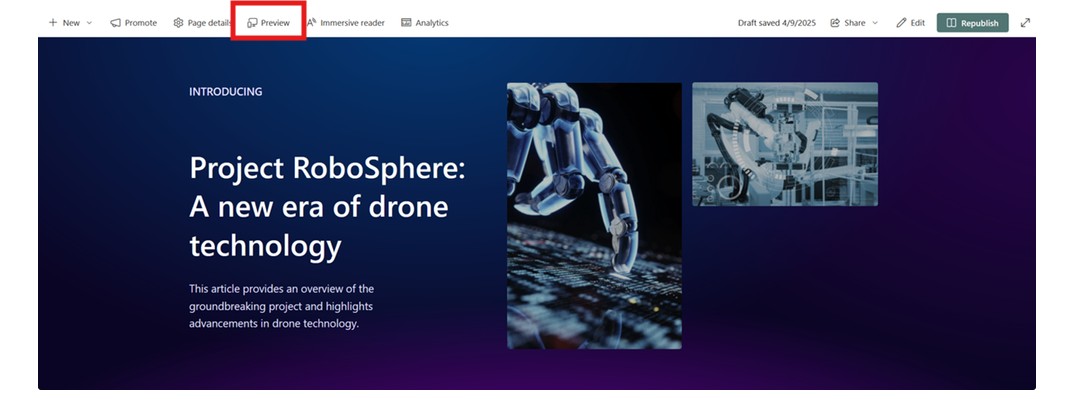
A new preview mode for pages and news posts is being added to SharePoint. A preview button will display in the command bar while users are editing Pages and News posts in SharePoint. After selecting Preview, users can see what the page will look like in view mode for the audience. When previewing Pages, users can navigate between Desktop and Mobile device types. When previewing News posts, users can also choose to view the email version as Desktop or Mobile device types. This change began being rolled out in late January and is expected to be completed in late March.
Microsoft have added a new admin control in PowerShell to hide real-time Microsoft Lists collaborators at the site collection level. Admins can run the PowerShell command Set-SPOSite -Identity -HidePeopleWhoHaveListsOpen $true to disable this feature on a per-site collection basis, so users cannot see who is working on the List at the same time. This update is based on customer feedback regarding privacy, and has finished rolling out now.
OneDrive
On January 27th, Microsoft began to implement the update for unlicensed OneDrive accounts. For accounts unlicensed before February 27th: On April 25th, all unlicensed accounts will transition to read-only mode. May 16, 2025: By this date, all unlicensed accounts will be archived. Admins are advised to check after each of these dates to avoid an incomplete status snapshot.
After this storage policy goes into effect in your tenant, any OneDrive user accounts that have been unlicensed for more than 90 days will be archived automatically and will become inaccessible to end users. Admins can view these accounts with admin tools, but the accounts will not be accessible to users until admins take action on them.
For admins: you can view a list of unlicensed accounts in your tenant by navigating to SharePoint admin center > Reports > OneDrive accounts. Some admins will have access to this page as soon as July 26, 2024, but most admins will be able to access the page closer to August 16, 2024.
Set up the Archive billing for unlicensed accounts to be able to access and edit the archived files.
Delete the unlicensed OneDrive account, if it does not have a retention policy applied to it.
Renew the unlicensed account to maintain access.
The Unlicensed OneDrive accounts page will be found in the Microsoft Admin Centre.
After the unlicensed accounts are automatically archived, you can access the files in these accounts by enabling unlicensed account billing in the Microsoft 365 admin center. Once enabled, unlicensed account billing applies to all unlicensed OneDrive accounts in your tenant. There is a fee of $0.05/GB/month to store unlicensed accounts in the Microsoft 365 Archive, and a fee of $0.60/GB to reactivate accounts stored in the Microsoft 365 Archive. Account reactivation takes up to 24 hours and provides 30 days of access to the account, and then the account returns to an archived state.
If you take no action for OneDrive accounts that have been unlicensed for longer than 90 days, these accounts will remain inaccessible to end users until you set up an Azure subscription and enable unlicensed account billing in the Microsoft SharePoint admin center. This action will not affect tenants who have not changed the default tenant retention settings.
To prepare for this change, admins can view a list of all the unlicensed OneDrive accounts in their tenant by going to the SharePoint admin center and navigating to Reports > OneDrive accounts (this page will be rolled out to admins between July 26, 2024 and August 16, 2024). This page will provide the number of unlicensed accounts and why the accounts are unlicensed. You may have unlicensed accounts in your tenant for four reasons:
1. Retention period – Account is no longer licensed but is still active because a retention period setting is keeping the account from being deleted.
2. Retention policy – Account is no longer licensed but is still active because a retention policy in Purview is keeping the account from being deleted.
3. Active user with no license – Account is active but is not licensed. This can happen if the license is removed but the user is not removed from Microsoft Entra ID (formerly Azure Active Directory).
4. Duplicate accounts – Account is a duplicate because a licensed user has multiple OneDrive accounts associated with them. Duplicate accounts (also known as non-primary accounts) may arise if a user has geographic move, if a user leaves and then rejoins an organization, or from other factors.
It is recommended that you:
1. Delete unlicensed accounts that you no longer wish to retain.
2. Set up billing for accounts that you wish to retain.